.png)
Backup Device
What is the backup device?
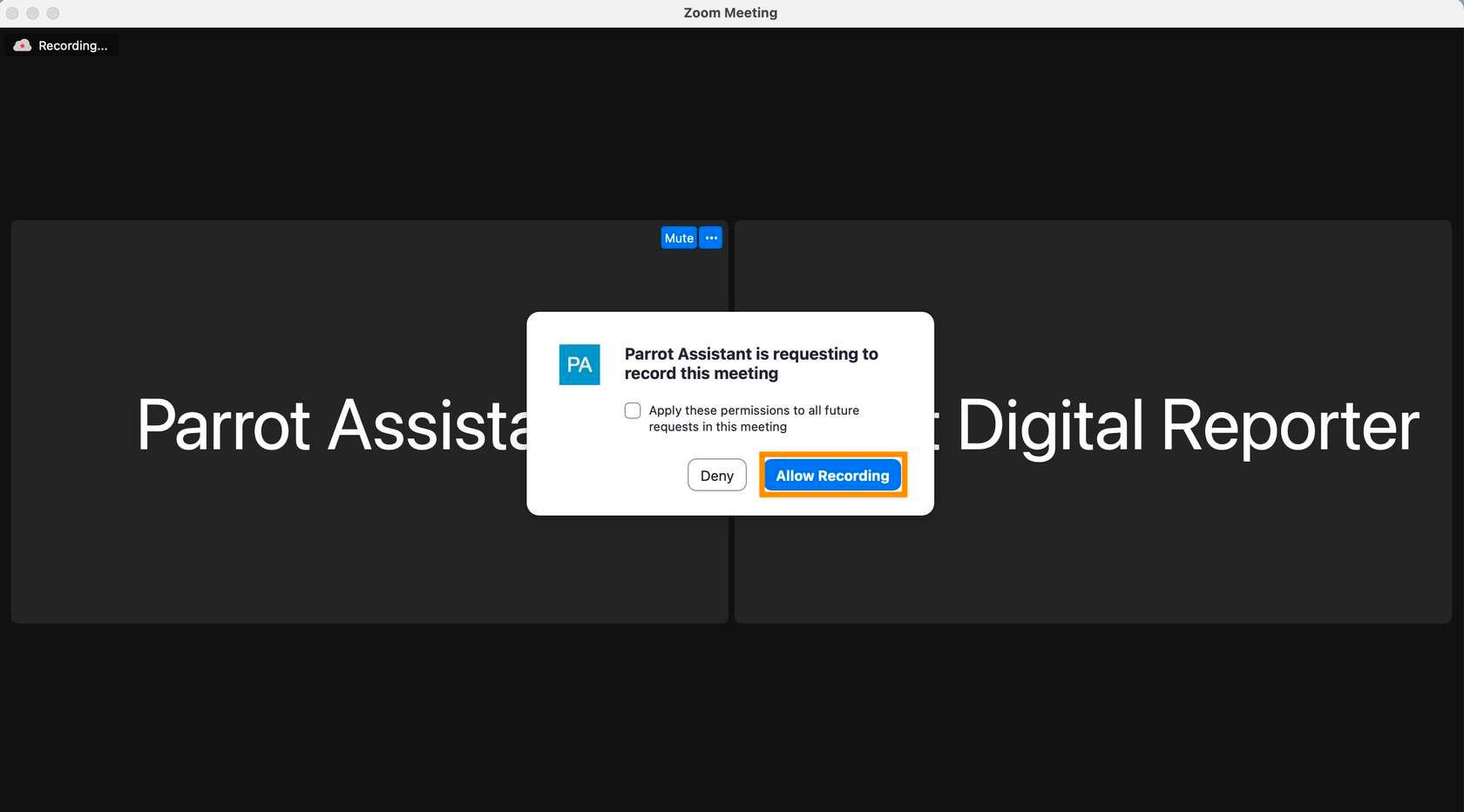
In order to have the live transcript during the event, we have a Parrot Assistant attendee that joins at the beginning of the Zoom. This is not an actual person, but a bot that is handling the recording for the livestream. You will see the pop-up below when you join. You must click Allow Recording. Do not click Deny or the checkbox to "Apply these permissions to all future requests in this meeting."
Troubleshooting
What if I accidentally Deny?
If you click Deny by accident (and do not click the Apply permissions checkbox),the prompt will appear again, and will keep appearing until you click Allow Recording.
What if I click the checkbox?
If you click the "Apply permissions to all future requests..." checkbox, then click Allow Recording. There is no additional action.
If you click the "Apply permissions to all future requests..." checkbox, then click Deny, the following will happen:
- Event Support will be immediately notified you have clicked the checkbox and denied recording and will reach out.
- You will be walked through how to turn back on the recording. To do so, follow the steps below.
- Open up the Participants panel
- Hover over the Parrot Assistant participant and click the "More" dropdown
- Click "Allow to record local files"
